I’ve been SSHing into production boxes since before most junior devs were born. In that time, I’ve seen the same sins repeated across every generation of sysadmins: naked private keys sitting in ~/.ssh with no passphrase, copy-pasted across laptops, synced to Dropbox (yes, really), and generally treated with the same care as a grocery list.
If your SSH private key doesn’t have a passphrase on it right now, you’re one stolen laptop away from a very bad day.
Here’s the setup I actually use—one that treats SSH authentication like the serious business it is, without making you type passwords fifty times a day.
The Problem: Naked Keys Everywhere
Let me paint you a picture I’ve seen a dozen times.
Developer gets new laptop. Developer runs ssh-keygen, hammers Enter through the passphrase prompts because “it’s annoying,” and copies id_rsa.pub to fifteen different servers. Developer feels productive.
Six months later, laptop gets stolen from a coffee shop. Thief now has root access to production. Developer updates LinkedIn to “exploring new opportunities.”
The math is simple: An unencrypted private key is a plaintext password sitting on your disk. Would you store root:hunter2 in a file called passwords.txt? Then why is your SSH key any different?
“But Passphrases Are Annoying”
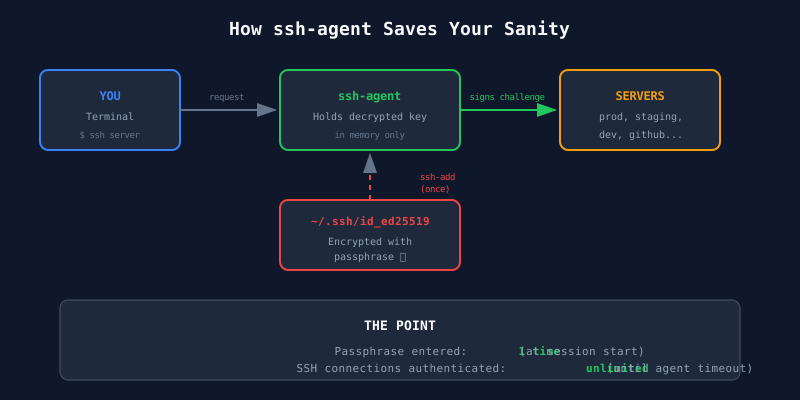
I hear this constantly. And you know what? You’re right. Typing a 20-character passphrase every time you SSH somewhere is annoying. That’s why we have ssh-agent.
The agent holds your decrypted key in memory. You type your passphrase once when you start your session, and the agent handles every subsequent connection. This is not new technology—it has existed since the 90s.
Setting Up ssh-agent (The Basics)
Most modern systems start an agent automatically. Check if you have one running:
echo $SSH_AUTH_SOCK
If you get a path back, you’re set. If not, start one:
eval $(ssh-agent -s)
Add your key to the agent:
ssh-add ~/.ssh/id_ed25519
You’ll be prompted for your passphrase once. After that, every SSH connection uses the cached key.
Making It Persistent
On Linux with systemd, enable the user agent service:
systemctl --user enable ssh-agent
systemctl --user start ssh-agent
Add to your shell profile:
# ~/.bashrc or ~/.zshrc
export SSH_AUTH_SOCK="$XDG_RUNTIME_DIR/ssh-agent.socket"
Watch out: Some distros (looking at you, Ubuntu) start their own agent via X11 session scripts. You can end up with two agents fighting over SSH_AUTH_SOCK. If keys aren’t loading as expected, check pgrep -a ssh-agent and kill any stragglers.
On macOS, add keys to the Keychain:
ssh-add --apple-use-keychain ~/.ssh/id_ed25519
And configure SSH to use it by adding to ~/.ssh/config:
Host *
    AddKeysToAgent yes
    UseKeychain yes
Now your passphrase survives reboots without you thinking about it.
Going Further: GPG Keys for SSH (The Right Way)
Here’s where I lose half the audience. Stay with me.
Why Bother?
If ssh-agent with a passphrase is “good enough,” why complicate things with GPG?
Because you’re already maintaining GPG keys for Git signing (you ARE signing your commits, right?). Adding SSH to that same identity means one backup, one rotation schedule, one mental model. And if you ever move to hardware tokens like YubiKeys, the GPG path gets you there with zero additional work—the YubiKey becomes your SSH key automatically.
You already have a GPG key if you followed my previous article. That key can have an Authentication subkey. Here’s what you get:
One identity to rule them all. Your GPG key signs commits, encrypts email, AND authenticates SSH. One key to back up, one key to rotate, one key to revoke.
Hardware token support. If you’re using a YubiKey for GPG (and you should be), you get SSH authentication on hardware for free. The private key never touches your disk.
The “cattle not pets” model carries over. Device-specific auth subkeys mean a compromised laptop doesn’t compromise your entire SSH infrastructure.
Expiration is built in. GPG subkeys have native expiry. Set your auth key to expire in 6 months—if it’s compromised, the damage is time-boxed. Standard SSH keys never expire by default. You still need to update
authorized_keysfiles, but at least you have a forcing function.
Step 1: Enable SSH Support in GPG Agent
The GPG agent can emulate ssh-agent. We just need to tell it to.
Add to ~/.gnupg/gpg-agent.conf:
enable-ssh-support
Restart the agent:
gpgconf --kill gpg-agent
gpg-agent --daemon
Step 2: Point SSH at GPG Agent
Add to your shell profile:
# ~/.bashrc or ~/.zshrc
export SSH_AUTH_SOCK=$(gpgconf --list-dirs agent-ssh-socket)
gpgconf --launch gpg-agent
Reload your shell. Verify it’s working:
ssh-add -L
You should see your GPG authentication subkey in SSH format.
Step 3: Add an Authentication Subkey (If You Don’t Have One)
If you followed my GPG article, you have Signing and Encryption subkeys. Let’s add Authentication.
gpg --edit-key "you@work.com"
gpg> addkey
# Select (10) ECC (sign only)... wait, that's wrong.
# We need to enable expert mode for auth keys.
gpg> quit
Let me try that again:
gpg --expert --edit-key "you@work.com"
gpg> addkey
# Select (11) ECC (set your own capabilities)
# Toggle off Sign, toggle on Authenticate
# Select Curve 25519
# Valid for? "2y"
gpg> save
Step 4: Export the Public Key for SSH
Get your authentication subkey’s keygrip (not the fingerprint—this trips people up):
gpg -K --with-keygrip
Find the [A] subkey (Authentication) and note its keygrip. It’s the 40-character hex string on the line after the subkey.
Export it in SSH format:
gpg --export-ssh-key you@work.com
This outputs a standard ssh-ed25519 AAAA... line. Add it to ~/.ssh/authorized_keys on your servers, or to GitHub/GitLab.
Step 5: Tell GPG Agent Which Key to Use
Add the keygrip to ~/.gnupg/sshcontrol:
echo "YOURKEYGRIP 0" >> ~/.gnupg/sshcontrol
The 0 means “don’t require confirmation for each use.” Change it to 1 if you’re paranoid.
The Full Picture
Here’s what your setup looks like now:
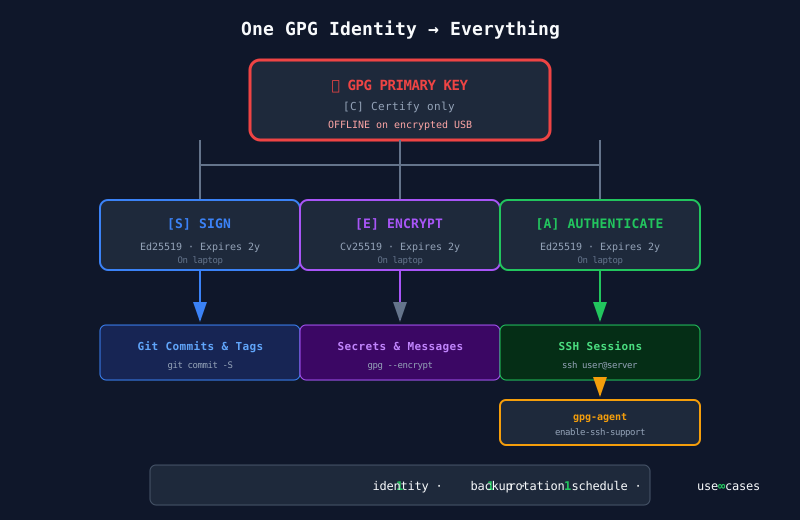
One identity. Backed up once. Revocable from one place.
Operational Reality
A few things I’ve learned running this setup for years:
Revocation doesn’t work like you think. When you export a GPG key to SSH format, it’s just a static public key string. The SSH daemon on your servers doesn’t check GPG keyservers—it has no idea if you revoked the key. You still need to remove lines from authorized_keys manually (or use something like LDAP/CA-based SSH). The win here is that GPG gives you a single source of truth for what should be valid. When you revoke a subkey, you know what to clean up.
The agent timeout matters. By default, gpg-agent caches your passphrase for 600 seconds. Tune this in gpg-agent.conf:
default-cache-ttl 3600
max-cache-ttl 7200
I use an hour for normal caching, two hours max. Adjust based on your paranoia level.
Forwarding works differently. If you’re used to ssh -A for agent forwarding, it still works—but you’re forwarding the GPG agent socket. This is actually more secure because you can configure which keys are allowed to be used remotely.
YubiKey users get the best deal. If your GPG key lives on a hardware token, your SSH authentication requires physical presence. No malware can exfiltrate what isn’t on the disk.
The Cheat Sheet
Encrypt Your Existing SSH Key (If You’re Not Ready to Switch)
# Add passphrase to existing key
ssh-keygen -p -f ~/.ssh/id_ed25519

# Verify agent is running
echo $SSH_AUTH_SOCK

# Add key to agent
ssh-add ~/.ssh/id_ed25519
Switch to GPG-Based SSH
# Enable SSH support
echo "enable-ssh-support" >> ~/.gnupg/gpg-agent.conf

# Update shell
echo 'export SSH_AUTH_SOCK=$(gpgconf --list-dirs agent-ssh-socket)' >> ~/.bashrc
echo 'gpgconf --launch gpg-agent' >> ~/.bashrc
source ~/.bashrc

# Add auth subkey
gpg --expert --edit-key you@work.com
# addkey -> ECC (set your own capabilities) -> Auth only -> Curve 25519 -> 2y

# Get SSH public key
gpg --export-ssh-key you@work.com >> ~/.ssh/authorized_keys_gpg

# Find KEYGRIP (not fingerprint!) and add to sshcontrol
gpg -K --with-keygrip | grep -A1 "\[A\]"
echo "KEYGRIP 0" >> ~/.gnupg/sshcontrol
Verify Everything Works
# List keys the agent knows about
ssh-add -L

# Test connection
ssh -v user@server 2>&1 | grep "Offering public key"
Prior Art & Further Reading
- GnuPG Wiki: SSH Support — The official documentation on gpg-agent SSH emulation.
- DrDuh’s YubiKey Guide — Again. If you’re serious about this, put your keys on hardware.
- Arch Wiki: GnuPG/SSH agent — Exhaustive documentation on every edge case.
Stop treating SSH keys like disposable toys. Encrypt them, manage them properly, and ideally consolidate them under your GPG identity.
Physics wins. Naked keys lose.